

Claude Code for VS Code User Guide
Claude Code is a programming tool launched by Anthropic, also known as one of the world's strongest programming agents. The Claude Code VS Code extension provides a native graphical interface and is the recommended way to use Claude Code within VS Code.
This document mainly introduces how to configure and use the Claude Code extension in VS Code through the qiyaov proxy service.
¶ Application Process
To use Claude Code, you can first go to the qiyaov Console to obtain your API Token for backup.

If you are not logged in or registered, you will be automatically redirected to the login page inviting you to register and log in. After logging in or registering, you will be automatically returned to the current page.
There will be a free quota offered during the first application, allowing you to experience Claude Code services for free.
¶ Installing the Claude Code Plugin
Search for Claude Code in the VS Code extension marketplace, confirm that the publisher is Anthropic, and then install it. After installation, the Claude Code entry will appear in the activity bar.
¶ Configuring qiyaov API
The first time you open the plugin, you will be prompted to log in to the official Anthropic account. You can skip the official login and use the qiyaov proxy API configuration instead, without needing an official subscription.
The extension and terminal CLI read the same set of Claude Code Settings. For complete authentication, credential conflict handling, and global configuration methods, see the Claude Code Terminal Configuration Guide. If you only want the current project to take effect, create a .claude/settings.local.json in the project root directory that is included in .gitignore:
{
  "env": {
    "ANTHROPIC_AUTH_TOKEN": "{token}",
    "ANTHROPIC_BASE_URL": "https://api.qiyaov.com"
  }
}
Where {token} is the API Key you just copied. If there is an old ANTHROPIC_API_KEY in the environment where VS Code is launched, please first unset ANTHROPIC_API_KEY in that environment; do not treat an empty string as cleaning, and do not place the real Key in the team-shared .claude/settings.json.
Below is the configuration completed on the local machine using VS Code 1.136.1 and Claude Code extension 2.1.251. The screenshot uses a placeholder Key to avoid leaking real credentials:
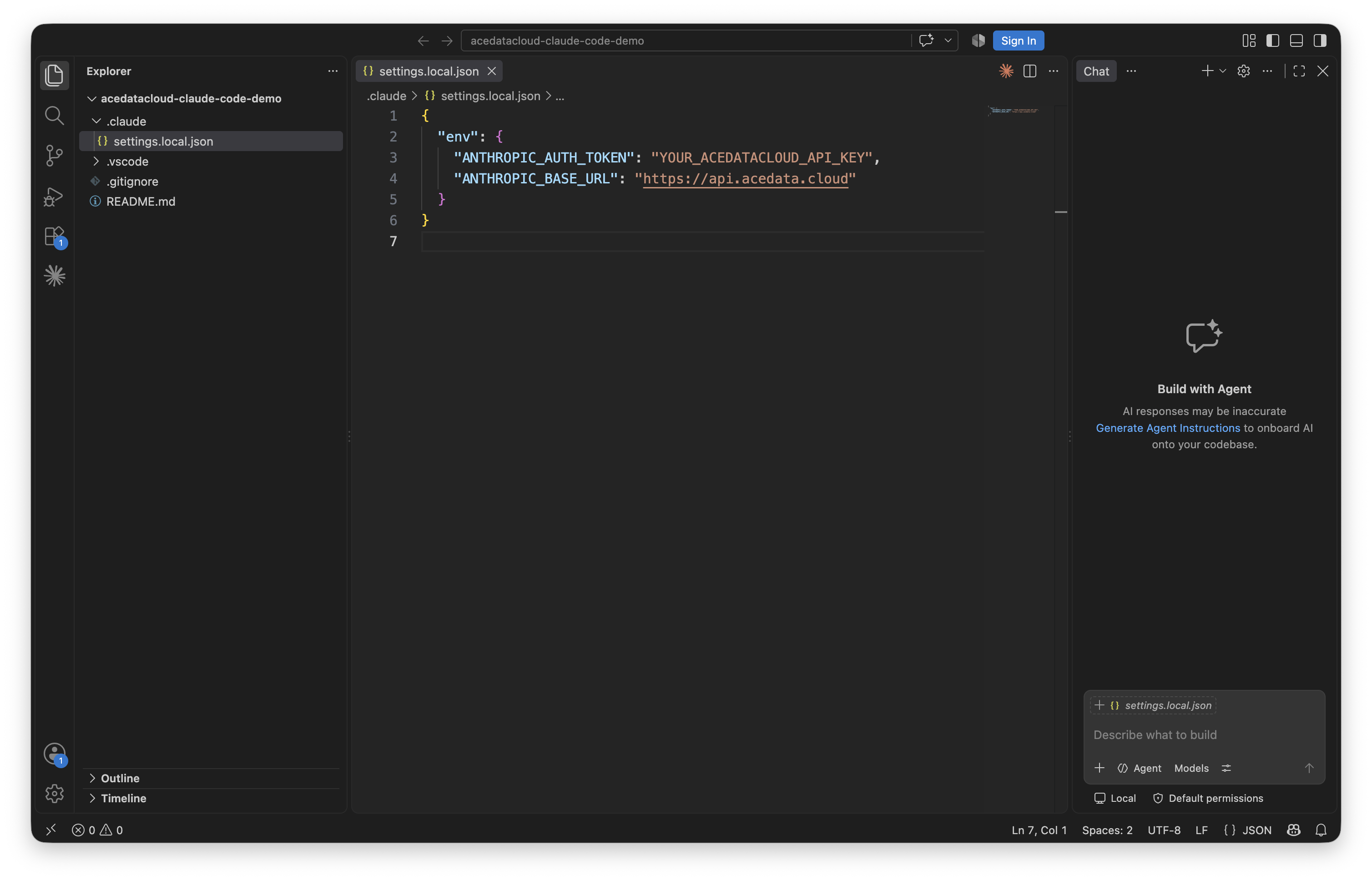
After configuration, restart VS Code.
Note: The above configuration only takes effect for the current project, and it is recommended to add the above
.claude/settings.local.jsonconfiguration file path to the.gitignorefile to prevent it from being pushed to the remote repository.
If you want it to take effect for all projects, you can directly place the configuration in the user directory. The corresponding path is ~/.claude/settings.json,
Note: After configuration, please restart or reload VS Code for the above configuration to take effect.
¶ Basic Usage
Once configured, send a simple read-only task in the Claude Code panel, such as "Read README.md and summarize it in one sentence." After the task is successful, you can check this call in the Usage History.
¶ How to Check Remaining Quota
You can check the current account's remaining quota through the qiyaov Console - Application List.
You can view all usage history and billing details through the qiyaov Console - Usage History.