
SeeDream Images Generation API Integration Guide
This article introduces a SeeDream Images Generation API integration guide, which can generate official SeeDream images by entering custom parameters.
¶ Application Process
To use the SeeDream Images Generation API, first go to the qiyaov Console to obtain your API Token and keep it for later use.

If you have not yet logged in or registered, you will be automatically redirected to the login page, where you will be invited to register and log in. After completion, you will automatically return to the current page.
One API Token can call all platform services; there is no need to apply separately for each service. Your first application includes free credits for a free trial; when your credits are insufficient, you can top up your general balance in the Console.
📘 Full documentation: SeeDream Images Generation API →
¶ Basic Usage
First, let's understand the basic usage method: enter the prompt prompt, generation action action, and image size size to obtain the processed result. First, you need to simply pass an action field with the value generate, and then we also need to enter a prompt. The specific content is as follows:

You can see that we have set Request Headers here, including:
accept: The format of the response result you want to receive. Enterapplication/jsonhere, which is JSON format.authorization: The key for calling the API. After applying, you can directly select it from the dropdown.
In addition, Request Body is set, including:
prompt: Prompt.model: Generation model, defaulting todoubao-seedream-5-0-lite-260128(SeeDream 5.0 Lite, latest). Supportsdoubao-seedream-5-0-pro-260628,doubao-seedream-5-0-lite-260128,doubao-seedream-4-5-251128, anddoubao-seedream-4-0-250828. Among them,doubao-seedream-5-0-pro-260628(SeeDream 5.0 Pro) is the flagship single-image model, generating only a single image, and does not support image groups (sequential_image_generation), streaming (stream), or web search (tools).modelmust be passed as the full model string (such asdoubao-seedream-5-0-lite-260128); passing an abbreviation such asdoubao-seedream-5.0-litewill return 400.image: Input image information, supporting URL or Base64 encoding.doubao-seedream-5-0-pro-260628supports single-image or multi-image input (up to 10 images), whiledoubao-seedream-5-0-lite-260128,doubao-seedream-4-5-251128, anddoubao-seedream-4-0-250828support single-image or multi-image input.size: Specifies the size information of the generated image. The following two methods are supported and cannot be mixed. Method 1 | Specify the resolution of the generated image and describe the image aspect ratio in natural language in the prompt. The presets supported by each model differ:doubao-seedream-5-0-pro-260628supports1K/1.5K/2K;doubao-seedream-5-0-lite-260128supports2K/3K/4K;doubao-seedream-4-5-251128supports only2K/4K;doubao-seedream-4-0-250828supports1K/2K/4K. Method 2 | Specify the width and height pixel values of the generated image: defaults to2048x2048; the total pixel count and aspect ratio value ranges vary by model (for example, the total pixel range for 5.0 Pro is [921600, 4624220], the lower limit for 5.0 Lite / 4.5 is 3,686,400, and the lower limit for 4.0 is 921,600).sequential_image_generation: Image group: a set of generated images with related content based on the content you enter.doubao-seedream-5-0-lite-260128,doubao-seedream-4-5-251128, anddoubao-seedream-4-0-250828support this parameter, defaulting todisabled.stream: Controls whether to enable streaming output mode.doubao-seedream-5-0-lite-260128,doubao-seedream-4-5-251128, anddoubao-seedream-4-0-250828support this parameter, defaulting tofalse.response_format: Specifies the return format of the generated image. The default isurl, andb64_jsonis also supported.watermark: Whether to add a watermark to the generated image. The default istrue.output_format: Specifies the file format of the generated image, supportingjpeg(default) andpng. Onlydoubao-seedream-5-0-pro-260628anddoubao-seedream-5-0-lite-260128support this.tools: Configures the tools to be called by the model. Currently supportsweb_search(web search). Only Seedream 5.0 Lite supports this.optimize_prompt_options: Prompt optimization configuration. 5.0 Pro supportsstandard/fast; 5.0 Lite and 4.5 support onlystandard; 4.0 supportsstandard/fast.background: Only supported for 5.0 Pro single-image editing.transparentrequires inputting a PNG with an alpha channel, andoutput_formatmust bepng;opaqueis a normal opaque background.layer_decomposition: Only supported by 5.0 Pro. When set totrue, a PNG/JPEG must be input; you can omitpromptfor automatic decomposition, or use natural language/<bbox>to specify elements;sizesupportsauto/1K/1.5K/2K. This mode cannot be used together with image groups, streaming, web search, orbackground.callback_url: The URL that requires callback results.async: Whether to process in asynchronous mode. When set totrue, the interface immediately returnstask_id; there is no need to providecallback_url, and you can then poll/seedream/tasksto obtain the result.
After making your selection, you can find that the corresponding code is also generated on the right, as shown in the image:
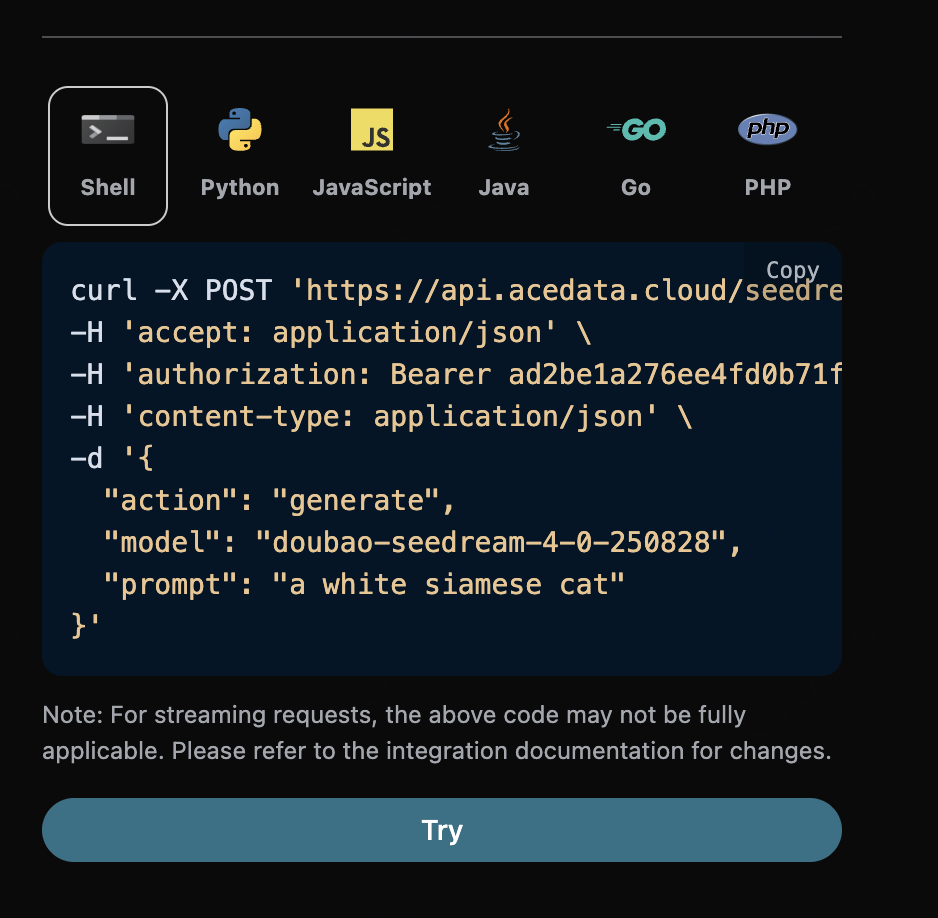
Click the “Try” button to test it. As shown in the image above, we obtain the following result here:
{
  "success": true,
  "task_id": "80ceeed1-17d4-4eb7-82e0-18b34290f36e",
  "trace_id": "96b7fdc8-0fc8-4e2e-82a9-83c0a82f0a08",
  "data": [
    {
      "prompt": "A single matte blue cube centered on a clean white studio background, neutral lighting",
      "size": "2048x2048",
      "image_url": "https://cdn.acedata.cloud/assets/examples/seedream/db93b46e-c302-4676-8a11-63f0ba638a27-1c6f66f6b7e8.jpg"
    }
  ]
}
The returned result contains multiple fields, described as follows:
success, the status of the video generation task at this time.task_id, the video generation task ID at this time.trace_id, the video generation tracking ID at this time.data, the result list of the image generation task at this time.image_url, the link of the image generation task at this time.prompt, the prompt.size: the pixels of the generated image
As you can see, we have obtained satisfactory image information. We only need to retrieve the generated SeeDream image according to the image link address in data in the result.
Additionally, if you want to generate the corresponding integration code, you can directly copy and generate it. For example, the CURL code is as follows:
curl -X POST 'https://api.qiyaov.com/seedream/images' \
-H 'accept: application/json' \
-H 'authorization: Bearer ${token}' \
-H 'content-type: application/json' \
-d '{
  "action": "generate",
  "model": "doubao-seedream-5-0-lite-260128",
  "prompt": "A single matte blue cube centered on a clean white studio background, neutral lighting"
}'
¶ Image Editing Task
If you want to edit an image, first, the parameter image must be passed with the link of the image to be edited.
- model: The model used for this image editing task.
doubao-seedream-5-0-pro-260628,doubao-seedream-5-0-lite-260128,doubao-seedream-4-5-251128, anddoubao-seedream-4-0-250828all support image input. - image: Upload one or more images that need to be edited.
The example is as follows:
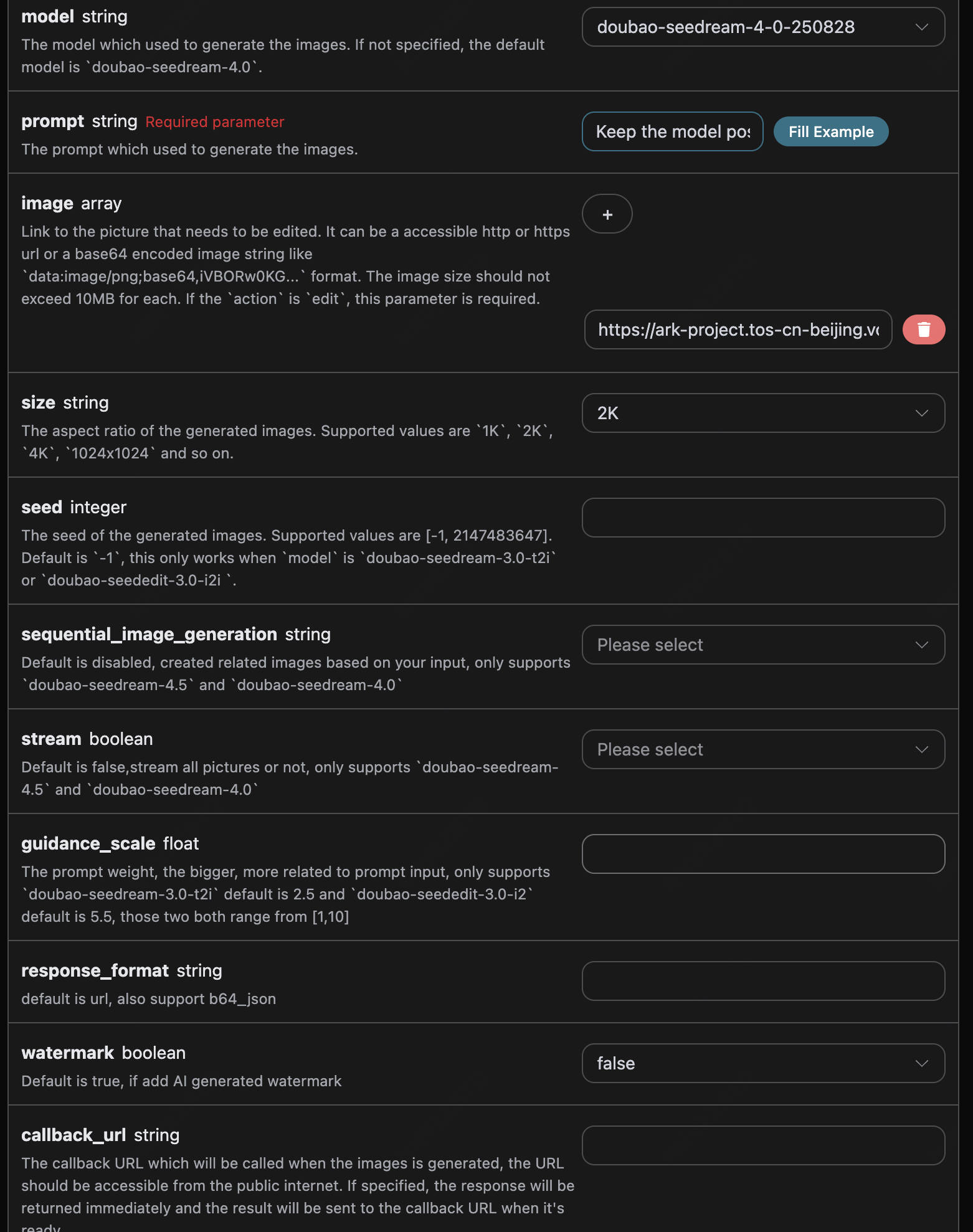
The corresponding code:
import requests

url = "https://api.qiyaov.com/seedream/images"

headers = {
    "accept": "application/json",
    "authorization": "Bearer {token}",
    "content-type": "application/json"
}

payload = {
    "model": "doubao-seedream-4-0-250828",
  "prompt": "Keep the model pose and the liquid garment flowing shape unchanged. Change the clothing material from silver metal to completely transparent water (or glass). Through the liquid flow, the details of the model skin are visible. The light and shadow effect shifts from reflection to refraction.",
  "image": ["https://ark-project.tos-cn-beijing.volces.com/doc_image/seedream4_5_imageToimage.png"],
  "size": "2K",
  "watermark": False
}

response = requests.post(url, json=payload, headers=headers)
print(response.text)
Click Run, and you can find that a result is obtained immediately, as follows:
{
    "success": true,
    "task_id": "c9aaffa2-b8ac-40ff-8468-43e77cb9ddde",
    "trace_id": "131a40c3-2eaf-44c9-af28-c9b408577286",
    "data": [
        {
            "prompt": "Keep the model pose and the liquid garment flowing shape unchanged. Change the clothing material from silver metal to completely transparent water (or glass). Through the liquid flow, the details of the model skin are visible. The light and shadow effect shifts from reflection to refraction.",
            "size": "2048x2048",
            "image_url": "https://platform.cdn.acedata.cloud/seedream/3e88db7e-4771-4f6a-adbd-5ae4590c5d59.jpg"
        }
    ]
}
As you can see, the generated effect is an editing effect on the original image, and the result is similar to the above.
¶ Layer Decomposition (Seedream 5.0 Pro)
Layer decomposition splits one input image into 1 background image and up to 16 independently editable transparent PNG layers. The following request lets the model automatically identify the main elements; if you need to specify elements, you can add prompt, or use normalized <bbox> coordinates in the prompt.
curl -X POST 'https://api.qiyaov.com/seedream/images' \
-H 'accept: application/json' \
-H 'authorization: Bearer ${token}' \
-H 'content-type: application/json' \
-d '{
  "model": "doubao-seedream-5-0-pro-260628",
  "image": "https://example.com/poster.png",
  "layer_decomposition": true,
  "size": "2K",
  "watermark": false
}'
The returned data is arranged from bottom to top according to z_index. The z_index of the background image is 0; layers also contain name, description, and bounding_box.absolute/normalized. When recomposing using absolute coordinates, scale the layer to [right-left, bottom-top], place it at [left, top], and then stack them in ascending z_index order. If generation of any layer fails, the entire decomposition fails.
¶ Streaming Output
When Lite/4.x is set to stream: true, use accept: application/x-ndjson for the request header. The API returns image_generation.partial_succeeded or image_generation.partial_failed line by line, and finally returns the unique image_generation.completed event and final usage; only the completion event triggers billing once. Streaming mode cannot be used together with async or callback_url.
¶ Asynchronous Callback
Since the SeeDream Images Generation API takes a relatively long time to generate, approximately 1–2 minutes, if the API does not respond for a long time, the HTTP request will keep the connection open, resulting in additional system resource consumption. Therefore, this API also provides support for asynchronous callbacks.
The overall process is: when the client initiates a request, it additionally specifies a callback_url field. After the client initiates the API request, the API immediately returns a result containing a task_id field, representing the current task ID. After the task is completed, the result of the generated image will be sent in the form of POST JSON to the callback_url specified by the client, which also includes the task_id field, so that the task result can be associated through the ID.
If you do not have a public network address available for callbacks, you can also omit callback_url and instead set the async field to true in the request. At this time, the API will also immediately return task_id, but it will not push the result. You need to carry this task_id to call the /seedream/tasks API to poll the task status and obtain the final result.
Next, let us understand the specific operation through an example.
Click Run, and you can find that a result is obtained immediately, as follows:
{
  "task_id": "c9aaffa2-b8ac-40ff-8468-43e77cb9ddde"
}
The content is as follows:
{
    "success": true,
    "task_id": "c9aaffa2-b8ac-40ff-8468-43e77cb9ddde",
    "trace_id": "131a40c3-2eaf-44c9-af28-c9b408577286",
    "data": [
        {
            "prompt": "Keep the model pose and the liquid garment flowing shape unchanged. Change the clothing material from silver metal to completely transparent water (or glass). Through the liquid flow, the details of the model skin are visible. The light and shadow effect shifts from reflection to refraction.",
            "size": "2048x2048",
            "image_url": "https://platform.cdn.acedata.cloud/seedream/3e88db7e-4771-4f6a-adbd-5ae4590c5d59.jpg"
        }
    ]
}
It can be seen that there is a task_id field in the result. The other fields are similar to those above, and task association can be achieved through this field.
¶ Error Handling
When calling the API, if an error is encountered, the API will return the corresponding error code and information. For example:
400 token_mismatched: Bad request, possibly due to missing or invalid parameters.400 api_not_implemented: Bad request, possibly due to missing or invalid parameters.401 invalid_token: Unauthorized, invalid or missing authorization token.429 too_many_requests: Too many requests, you have exceeded the rate limit.500 api_error: Internal server error, something went wrong on the server.
¶ Error Response Example
{
  "success": false,
  "error": {
    "code": "api_error",
    "message": "fetch failed"
  },
  "trace_id": "2cf86e86-22a4-46e1-ac2f-032c0f2a4e89"
}
¶ Conclusion
Through this document, you have learned how to use the SeeDream Images Generation API to generate images by entering prompts. We hope this document can help you better integrate with and use this API. If you have any questions, please feel free to contact our technical support team.