

Veo Videos Generation API Integration Guide
This article will introduce a Veo Videos Generation API integration guide, which can generate official Veo videos by entering custom parameters.
¶ Application Process
To use the Veo Videos Generation API, first go to the qiyaov Console to obtain your API Token and keep it for later use.

If you are not yet logged in or registered, you will be automatically redirected to the login page to register and log in. After completion, you will automatically return to the current page.
One API Token can call all services on the platform; there is no need to apply separately for each service. The first application comes with free credits for a free trial; when credits are insufficient, you can top up your general balance in the Console.
📘 Complete documentation: Veo Videos Generation API →
¶ Basic Usage
First, let's understand the basic usage method. By entering the prompt prompt, generation action action, first and last frame reference image array image_urls, and model model, you can obtain the processed result. First, you need to simply pass an action field, whose value is text2video. It mainly includes three actions: text-to-video (text2video), image-to-video (image2video), and obtaining 1080p video (get1080p). Then we also need to enter the model model. Currently, there are mainly the veo31-fast, veo3, veo31, veo3-fast, and veo31-fast-ingredients models. The specific contents are as follows:
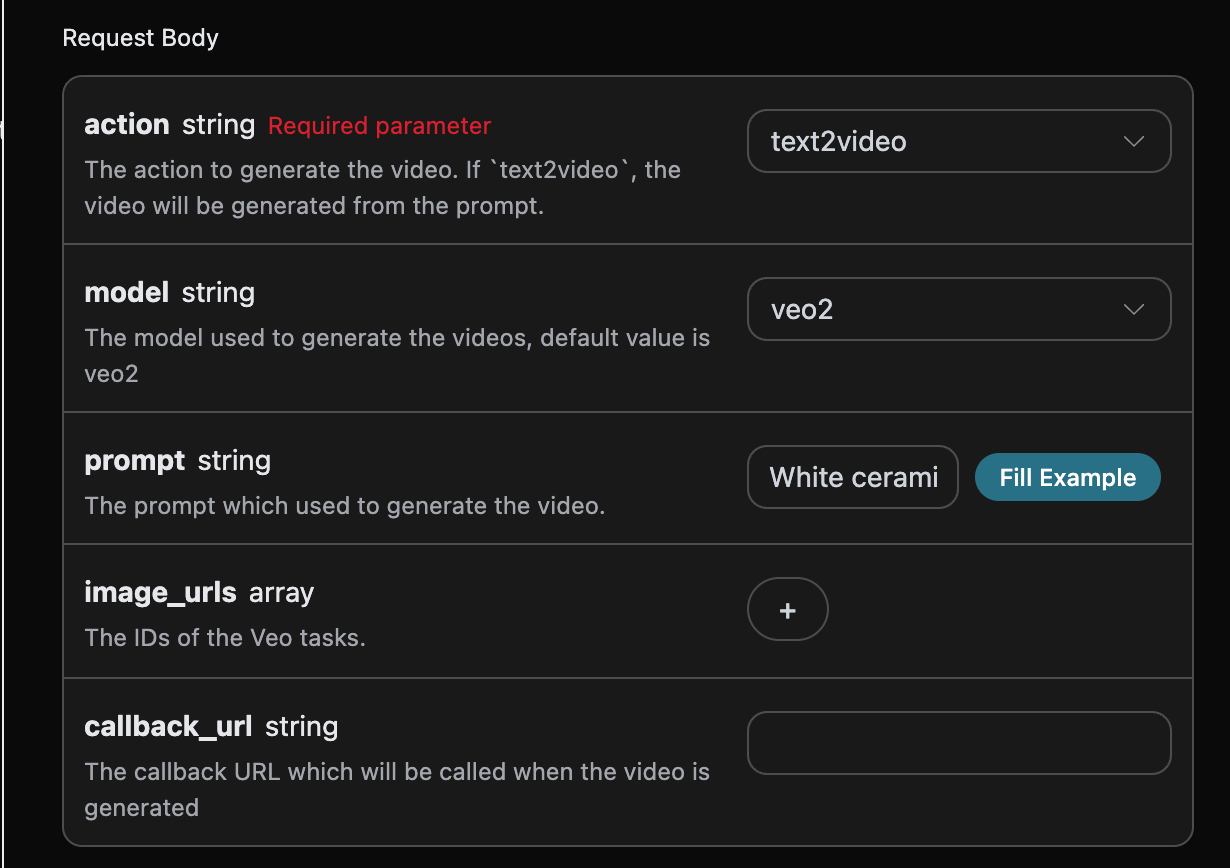
You can see that we set the Request Headers here, including:
accept: The format of the response result you want to receive. Fill inapplication/jsonhere, which is JSON format.authorization: The key for calling the API. After applying, you can directly select it from the dropdown.
Additionally, the Request Body is set, including:
model: The model for generating videos, mainly including theveo31-fast,veo3,veo31,veo3-fast, andveo31-fast-ingredientsmodels.action: The action of this video generation task, mainly including three actions: text-to-video (text2video), image-to-video (image2video), and obtaining 1080p video (get1080p).image_urls: The reference image links that must be uploaded when selecting the image-to-video actionimage2video.veo31-fast-ingredientssupports up to 3 images (multi-image fusion), while the other models support up to 2 images (first and last frame mode).resolution: Select the resolution of the generated video. Among them, the veo31 model supports 4k resolution, while other models do not. All models support 1080p and gif resolution. If this value is not passed, 720p resolution is used by default. It is mainly divided into:1080p,gif,4k.prompt: Prompt.callback_url: The URL that needs to receive callback results.async: Optional. When set totrue, the API immediately returnstask_id, without needing to providecallback_url. The result can then be obtained by polling through the corresponding task query API.
¶ 📌 Model Summary
| Model Name | Supported Modes | Image Input Rules |
|---|---|---|
| veo3-fast | Text-to-video (no image) Image-to-video mode (with image) |
1 image → First frame mode 2 images → First and last frame mode |
| veo31-fast | Text-to-video (no image) Image-to-video mode (with image) |
1 image → First frame mode 2 images → First and last frame mode |
| veo31-fast-ingredients | ❌ Text-to-video (not supported) ✅ Mandatory multi-image fusion (images must be provided) |
1-3 images → Multi-image fusion mode (up to 3 images) |
| veo3 | Text-to-video (no image) Image-to-video mode (with image) |
1 image → First frame mode 2 images → First and last frame mode |
| veo31 | Text-to-video (no image) Image-to-video mode (with image) |
1 image → First frame mode 2 images → First and last frame mode |
¶ 🔑 Key Rule Description
- General logic:
- No image input → Automatically triggers text-to-video mode.
- With image input → Triggers image-to-video mode (the specific behavior is determined by the number of images).
- Image-to-video mode types:
- First frame mode (1 image): The first frame is fixed as the input image.
- First and last frame mode (2 images): The first and last frames are fixed as the input images.
- Multi-image fusion mode (1-3 images): Only supported by
veo31-fast-ingredients, which generates videos by fusing multi-image content.
- Mode classification:
- Fast mode:
veo3-fast,veo31-fast,veo31-fast-ingredients. - Quality mode:
veo3,veo31(higher generation quality).
¶ ⚠️ Notes
- The only model that requires images:
veo31-fast-ingredientsmust receive images (1-3 images), otherwise it cannot run. - Image quantity limits:
veo31-fast-ingredientssupports 1-3 images as input (multi-image fusion mode).- Other models support up to 2 images as input (first and last frame mode).
After selecting, you can find that the corresponding code is also generated on the right side, as shown in the image:
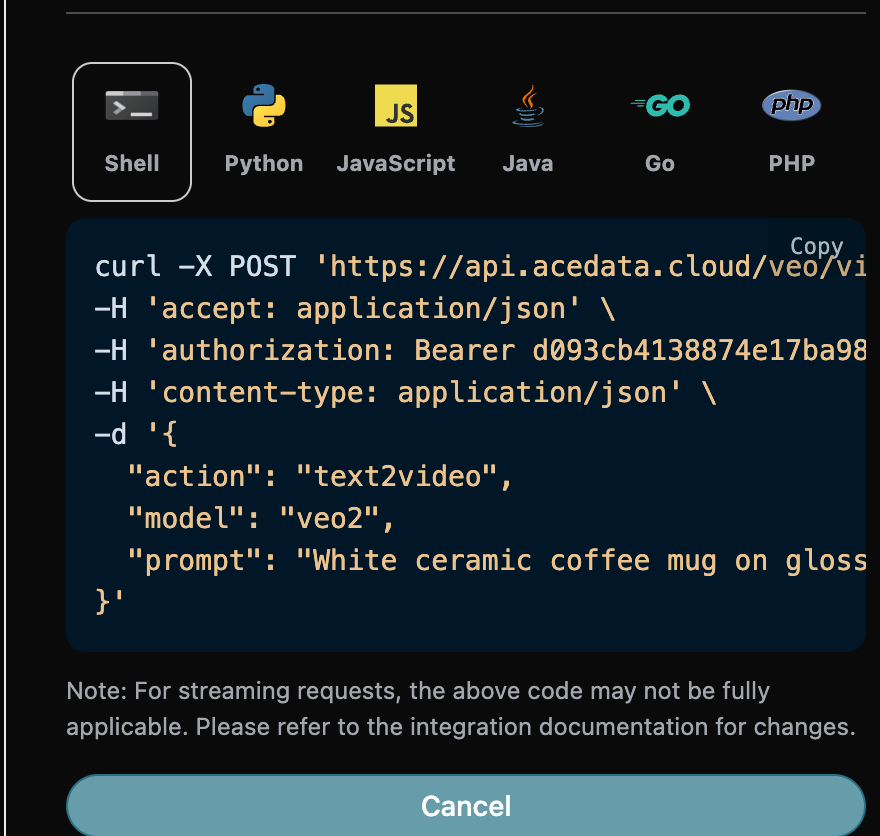
Click the "Try" button to test. As shown in the image above, we obtain the following result:
{
  "success": true,
  "task_id": "697ea2fc-58fd-48c8-8191-29041ff23c3c",
  "trace_id": "70e1cb12-c619-4292-a416-90191205996b",
  "data": [
    {
      "id": "24ac06a5-9cc7-448f-802e-0b4db19f6e96",
      "video_url": "https://cdn.acedata.cloud/assets/examples/veo/f5389ec0-2eb5-4212-b4a8-04b513b0129a-0b0c3113d691.mp4",
      "created_at": "2026-06-30T04:01:50.364Z",
      "complete_at": "2026-06-30T04:03:20.495Z",
      "state": "succeeded"
    }
  ]
}
The returned result contains multiple fields, introduced as follows:
success, the status of the video generation task at this time.task_id, the video generation task ID at this time.data, the result of the video generation task at this time.id, the video ID of the video generation task at this time.video_url, the video link of the video generation task at this time.created_at, the creation time of the video generation task at this time.complete_at, the completion time of the video generation task at this time.state, the status of the video generation task at this time.
You can see that we have obtained satisfactory video information. We only need to obtain the generated Veo video according to the video link address in data in the result.
In addition, if you want to generate the corresponding integration code, you can copy and generate it directly. For example, the CURL code is as follows:
curl -X POST 'https://api.qiyaov.com/veo/videos' \
-H 'accept: application/json' \
-H 'authorization: Bearer {token}' \
-H 'content-type: application/json' \
-d '{
  "action": "text2video",
  "model": "veo31-fast",
  "prompt": "White ceramic coffee mug on glossy marble countertop with morning window light. Camera slowly rotates 360 degrees around the mug, pausing briefly at the handle."
}'
¶ Image-to-Video Feature
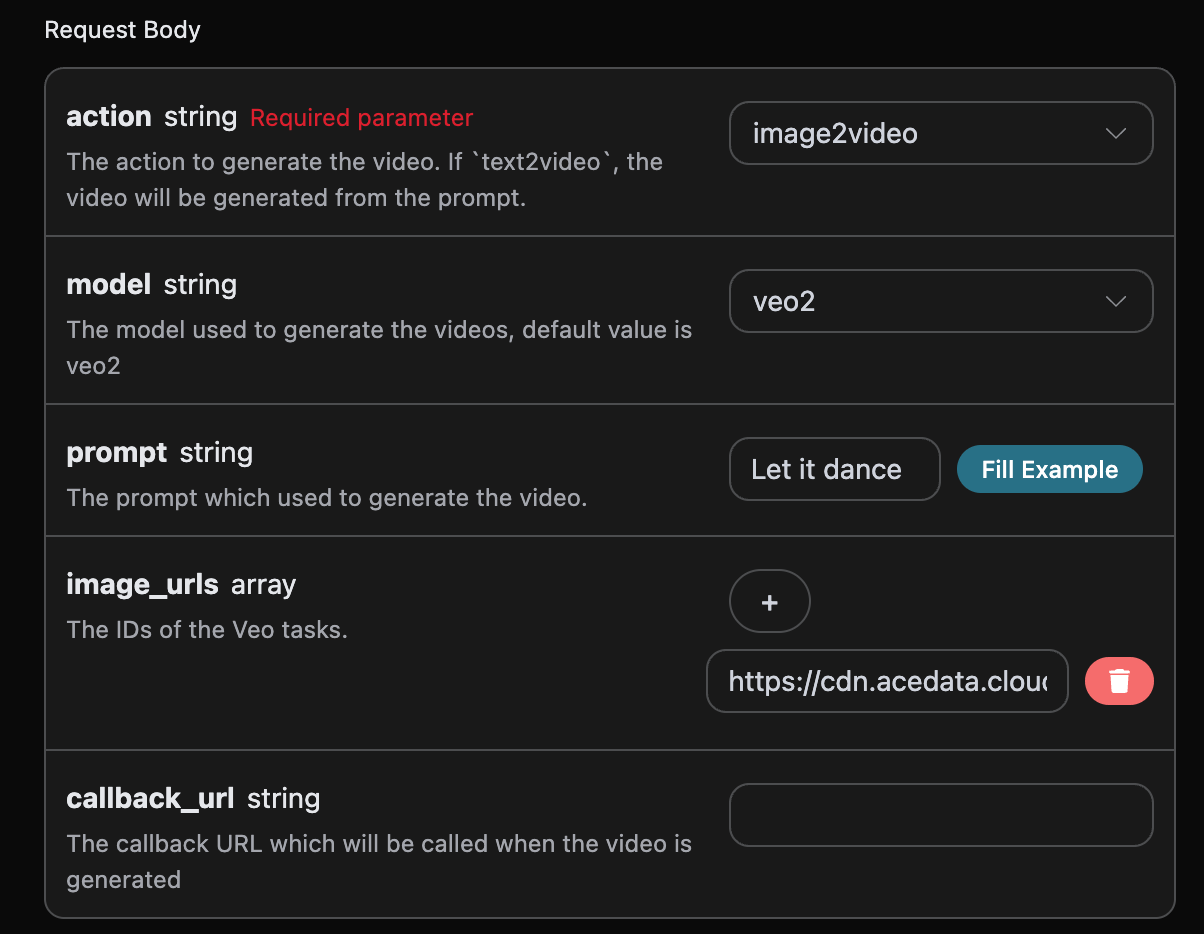
If you want to generate a video based on the first and last frame images, you can set the parameter action to image2video, and input the first and last frame image link array image_urls.
Next, we must fill in the prompts that need to be extended in the next step to customize the generated video, and can specify the following content:
model: The model for generating videos, mainly includingveo31-fast,veo3,veo31,veo3-fast, andveo31-fast-ingredients.image_urls: When selecting the image-to-video behaviorimage2video, the reference image links that must be uploaded.prompt: Prompt.
The filling example is as follows:
After filling it in, the code is automatically generated as follows:
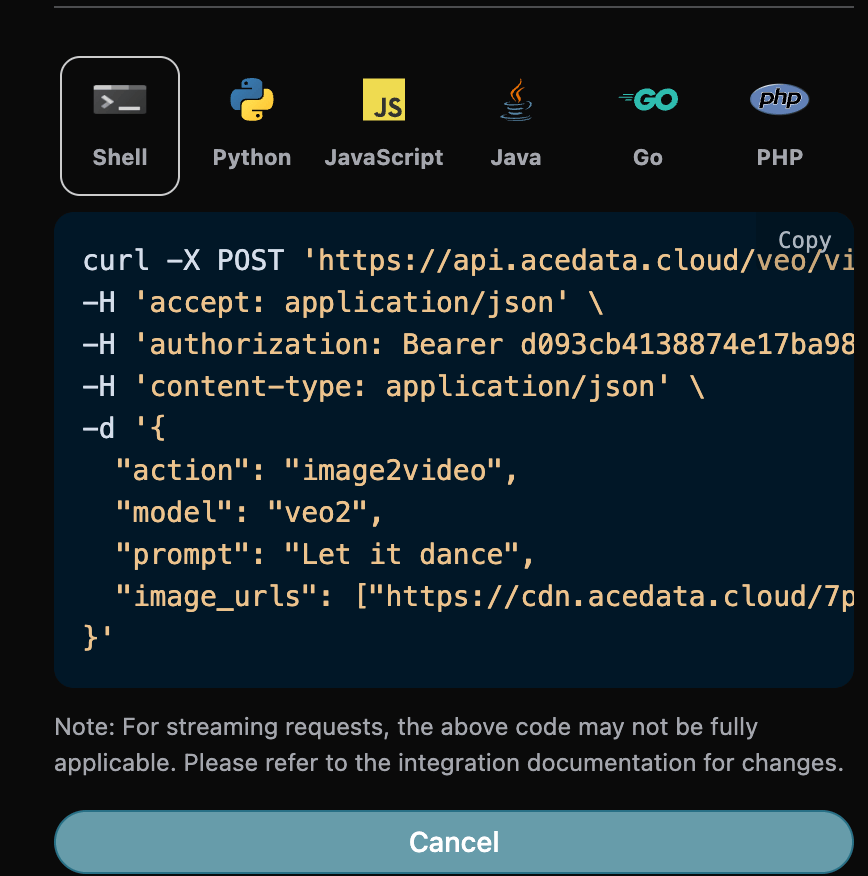
The corresponding Python code:
import requests

url = "https://api.qiyaov.com/veo/videos"

headers = {
    "accept": "application/json",
    "authorization": "Bearer {token}",
    "content-type": "application/json"
}

payload = {
    "action": "image2video",
    "model": "veo31-fast",
    "prompt": "Let it dance",
    "image_urls": ["https://cdn.acedata.cloud/7p1jhy.png"]
}

response = requests.post(url, json=payload, headers=headers)
print(response.text)
Click Run, and you can find that a result will be obtained, as follows:
{
  "success": true,
  "task_id": "98e309f3-35bc-438d-8cb3-4015fc864b87",
  "trace_id": "8bc68066-36de-41ef-ae5e-b7d61ff6aee8",
  "data": [
    {
      "id": "59f12222b1fa4fbe9331ff2400ad1583",
      "video_url": "https://platform.cdn.acedata.cloud/veo/98e309f3-35bc-438d-8cb3-4015fc864b87.mp4",
      "created_at": "2025-07-25 16:13:07",
      "complete_at": "2025-07-25 16:16:12",
      "state": "succeeded"
    }
  ]
}
It can be seen that the result content is consistent with the above, which implements the image-to-video feature for videos.
¶ Get 1080p Video Feature
If you want to get 1080p for an already generated Veo video, you can set the parameter action to get1080p, and input the ID of the video for which 1080p needs to be obtained. The video ID is obtained based on the basic usage, as shown in the following image:
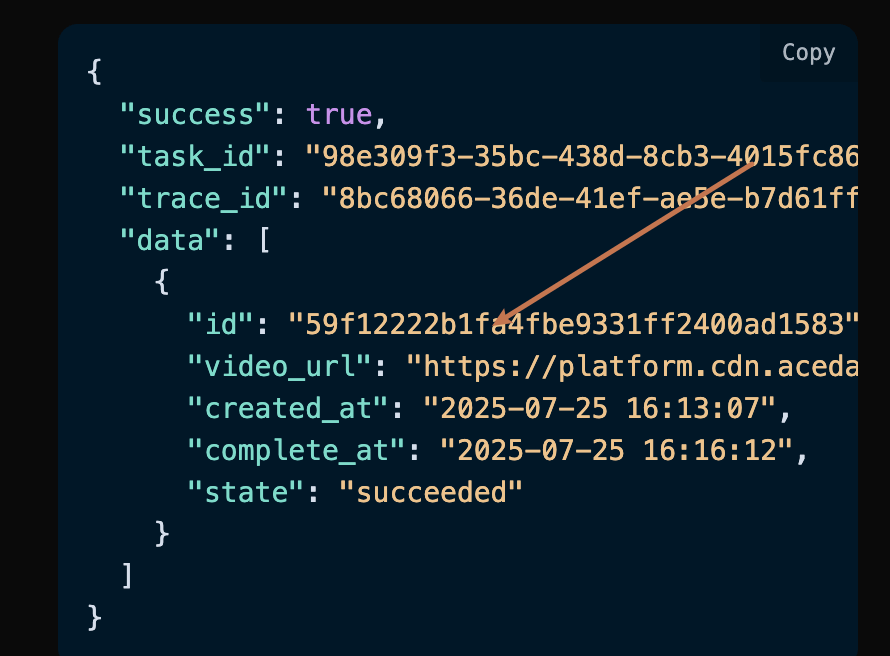
At this time, you can see that the video ID is:
"id": "59f12222b1fa4fbe9331ff2400ad1583"
Note that the
video_idin the video here is the ID of the generated video. If you do not know how to generate a video, you can refer to the basic usage above to generate a video.
Next, we must fill in the prompts that need to be extended in the next step to customize the generated video, and can specify the following content:
model: The model for generating videos, mainly includingveo31-fast,veo3,veo31,veo3-fast, andveo31-fast-ingredients.video_id: The reference video ID, used to obtain the 1080p video.
The filling example is as follows:
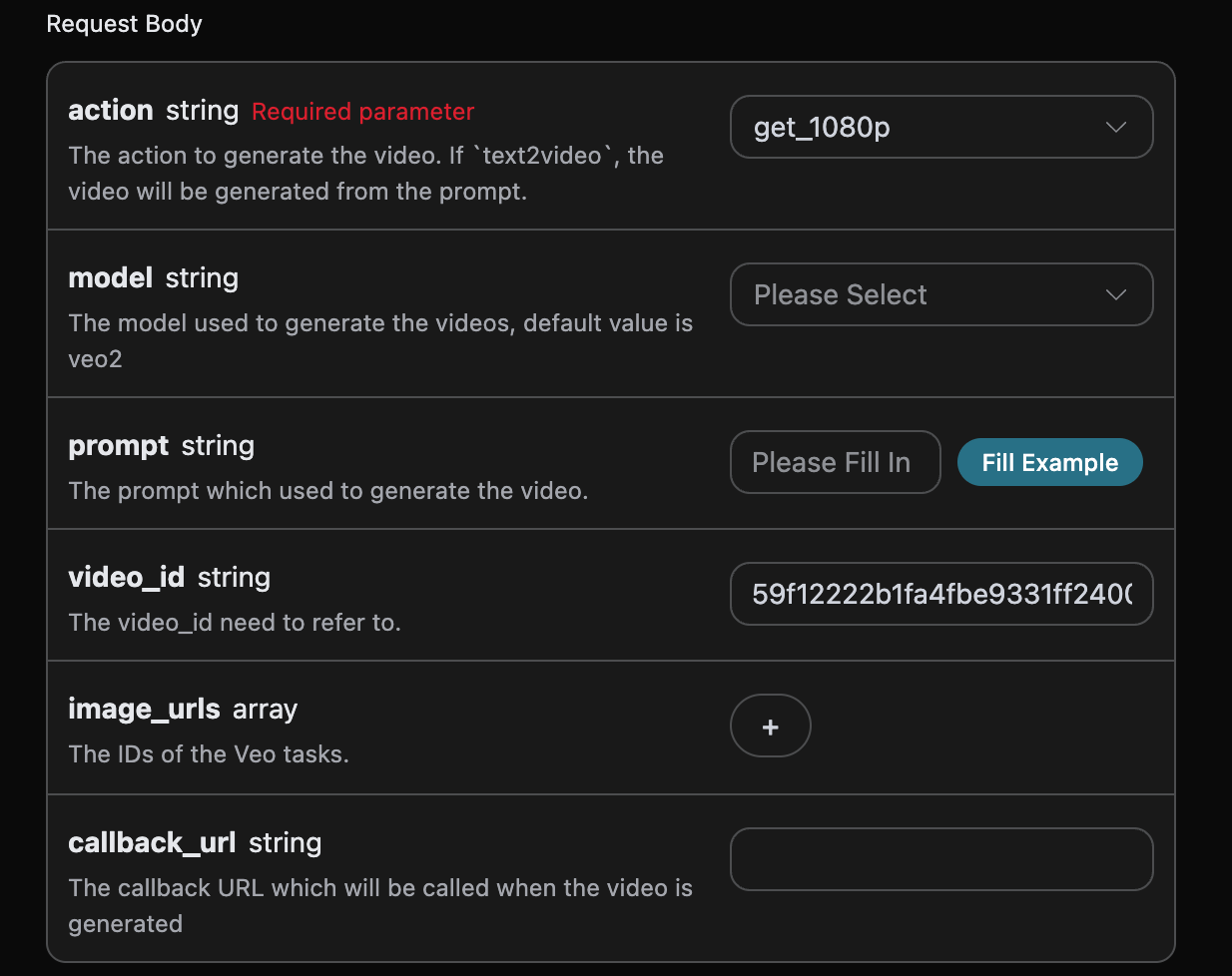
After filling it in, the code is automatically generated as follows:
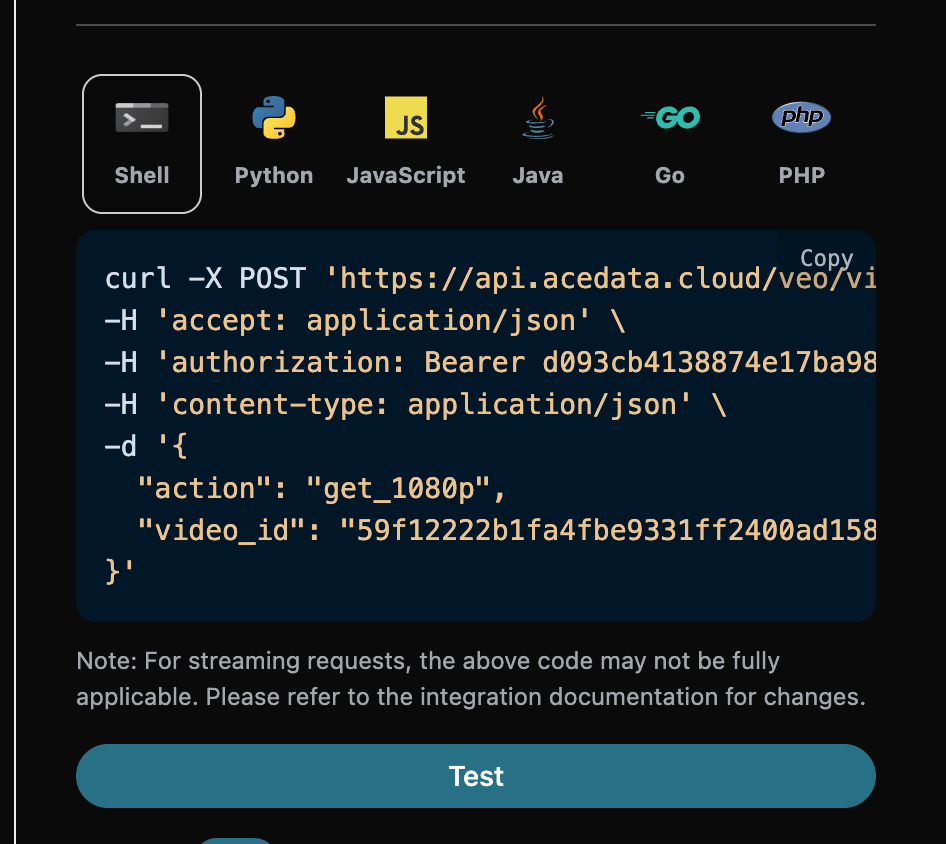
Click Run, and you can find that a result will be obtained, as follows:
{
  "success": true,
  "task_id": "47a51cfe-2e24-4aba-93b3-546c2dc52984",
  "trace_id": "a8922eec-6f50-4f77-8104-00ded071d59d",
  "data": [
    {
      "id": "59f12222b1fa4fbe9331ff2400ad1583",
      "video_url": "https://platform.cdn.acedata.cloud/veo/47a51cfe-2e24-4aba-93b3-546c2dc52984.mp4",
      "created_at": "2025-07-25 16:13:07",
      "complete_at": "2025-07-25 16:16:12",
      "state": "succeeded"
    }
  ]
}
It can be seen that the result content is consistent with the above, which implements the feature of obtaining 1080p videos.
¶ Generate with a Specified Video Size
If you want to specify the generation of a Veo video with a custom size, you can set the parameter aspect_ratio to the desired size. Next, we must fill in the prompts that need to be extended in the next step to customize the generated video, and can specify the following content:
model: The model for generating videos, mainly includingveo31-fast,veo3,veo31,veo3-fast, andveo31-fast-ingredients.aspect_ratio: The video size. Currently supported:16:9,16:9,3:4,4:3,1:1; the default is16:9.translation: Whether to enable automatic translation of prompts. The default isfalse. The filling example is as follows:
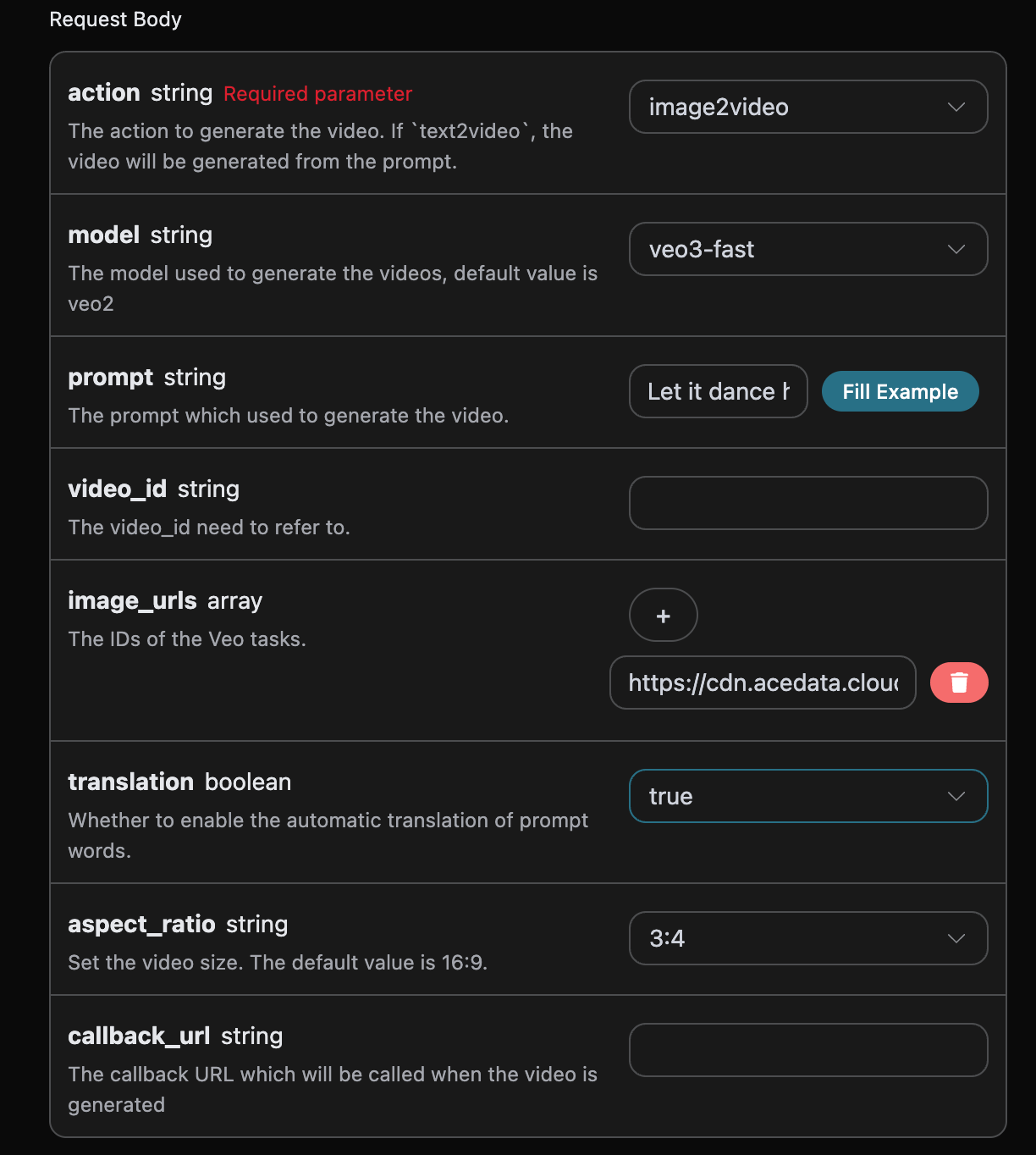
After filling it in, the code is automatically generated as follows:
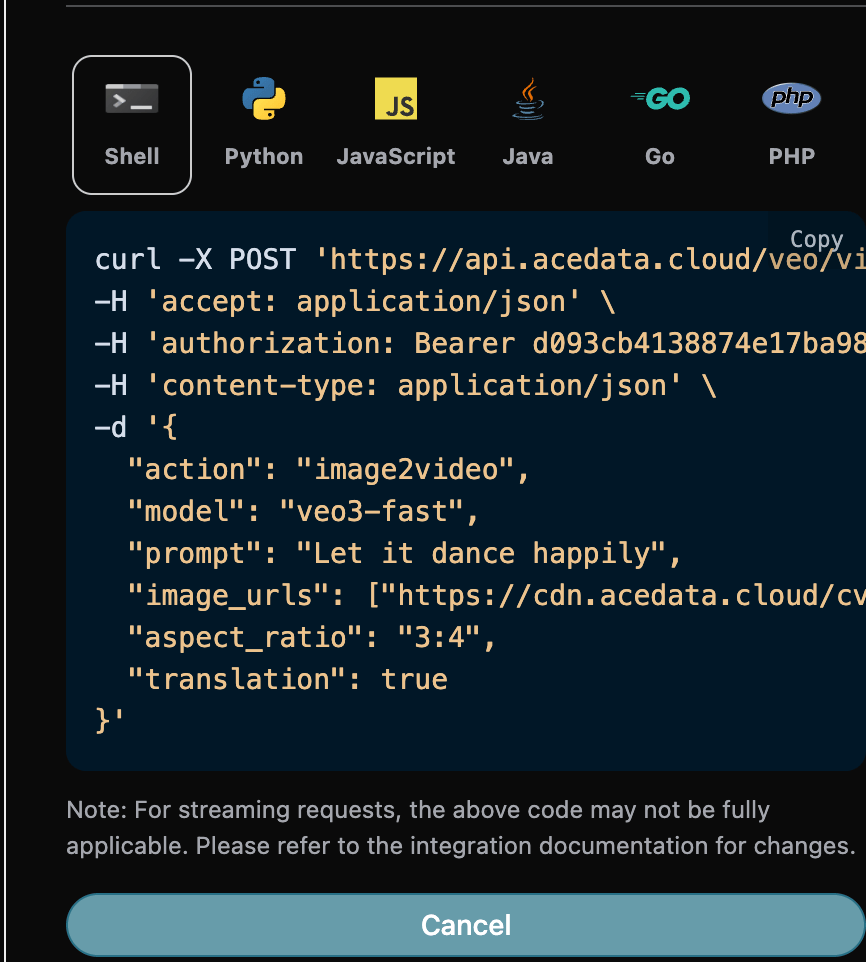
Click Run, and you can find that a result will be obtained, as follows:
{
  "success": true,
  "task_id": "d2b93290-ab0e-4d20-ae45-60c062a32687",
  "trace_id": "9834e64d-c8fe-43ae-8114-ee2b5f93d886",
  "data": [
    {
      "id": "fc667e7d3b8f44beaa61a3c339af0e50",
      "video_url": "https://platform.cdn.acedata.cloud/veo/d2b93290-ab0e-4d20-ae45-60c062a32687.mp4",
      "created_at": "2025-08-24 20:09:06",
      "complete_at": "2025-08-24 20:10:45",
      "state": "succeeded"
    }
  ]
}
It can be seen that the result content is consistent with the above, thus implementing the function of generating videos with specified dimensions.
¶ Asynchronous Callback
Since the generation time of the Veo Videos Generation API is relatively long, approximately 1-2 minutes, if the API does not respond for a long time, the HTTP request will keep the connection open, resulting in additional system resource consumption, so this API also provides support for asynchronous callbacks.
The overall process is: when the client initiates a request, it additionally specifies a callback_url field. After the client initiates the API request, the API will immediately return a result containing a task_id field, representing the current task ID. When the task is completed, the result of the generated video will be sent in the form of POST JSON to the callback_url specified by the client, which also includes the task_id field, so that the task result can be associated through the ID.
Next, let us understand the specific operation through an example.
First, a Webhook callback is a service that can receive HTTP requests. Developers should replace it with the URL of their own deployed HTTP server. For the convenience of demonstration, a public Webhook sample website https://webhook.site/ is used here. Opening this website will provide a Webhook URL, as shown in the figure:

Copy this URL, and it can be used as a Webhook. The example here is https://webhook.site/aed5cd28-f8aa-4dca-9480-8ec9b42137dc.
Next, we can set the field callback_url to the above Webhook URL and fill in the corresponding parameters. The specific content is shown in the figure:
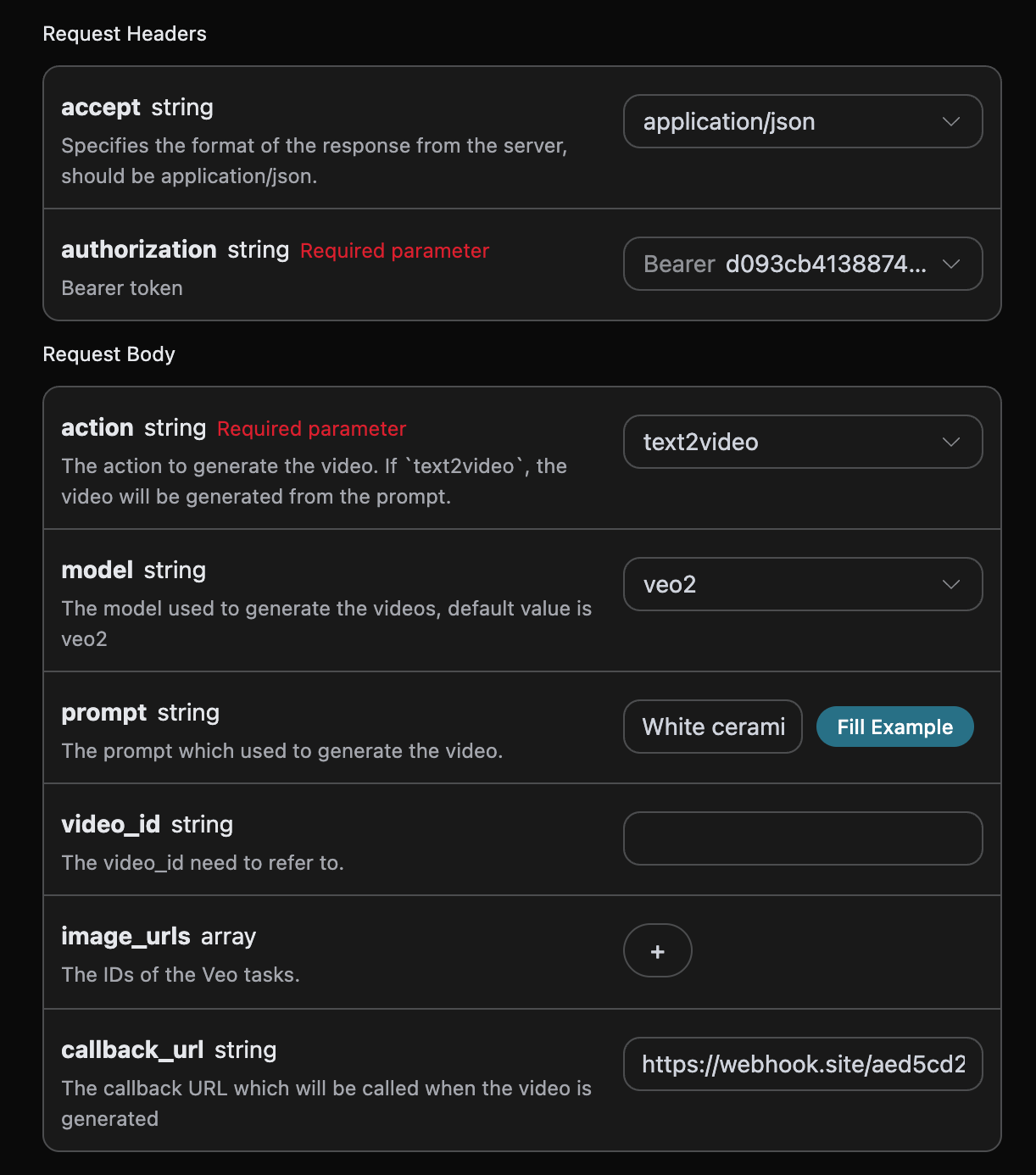
Click Run, and you can find that a result is obtained immediately, as follows:
{
  "task_id": "1ebe4f2b-59ba-4385-a4ea-0ce8a3fe12ed"
}
After waiting for a moment, we can observe the result of the generated video at https://webhook.site/aed5cd28-f8aa-4dca-9480-8ec9b42137dc, as shown in the figure:
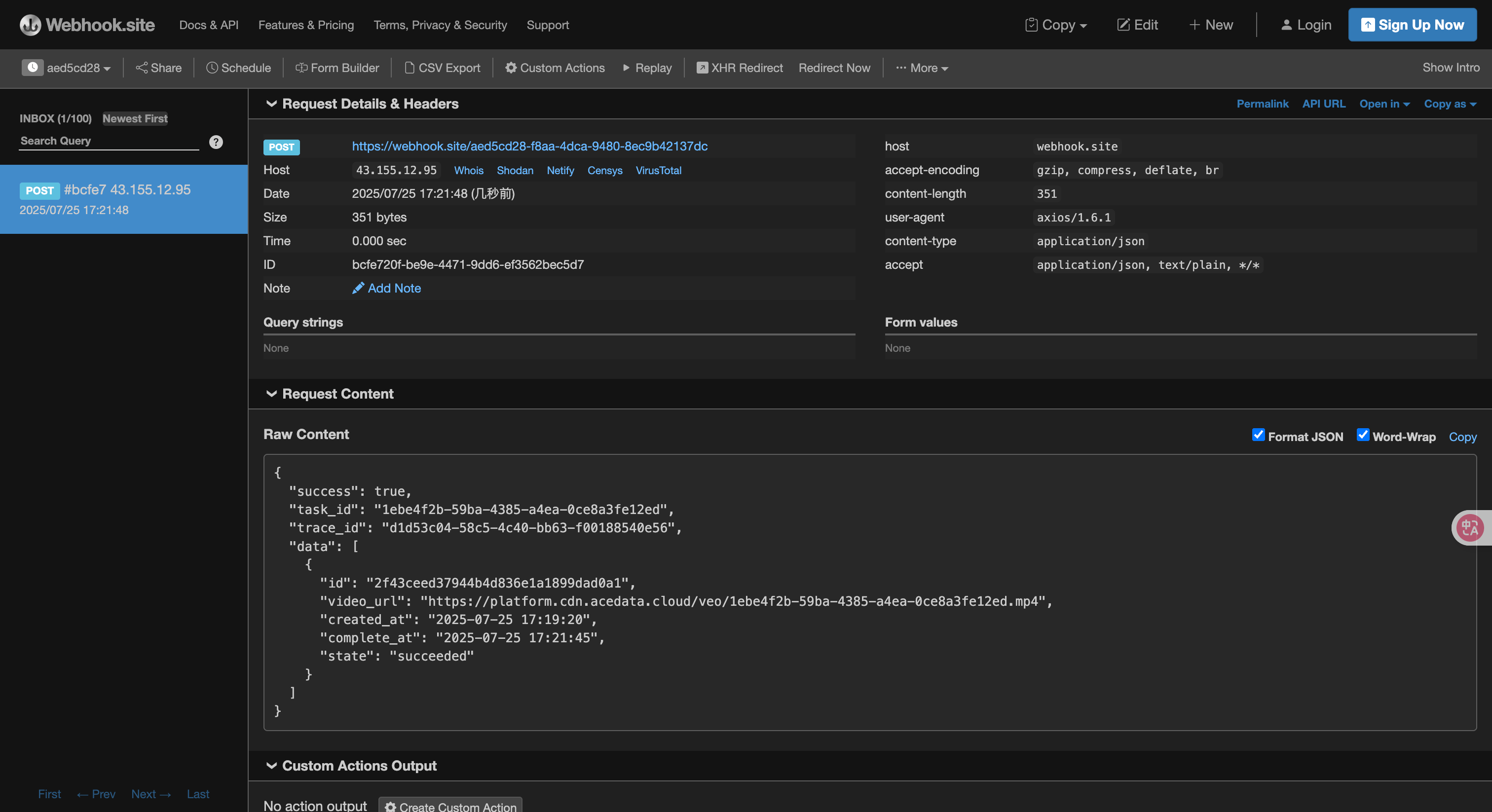
The content is as follows:
{
  "success": true,
  "task_id": "1ebe4f2b-59ba-4385-a4ea-0ce8a3fe12ed",
  "trace_id": "d1d53c04-58c5-4c40-bb63-f00188540e56",
  "data": [
    {
      "id": "2f43ceed37944b4d836e1a1899dad0a1",
      "video_url": "https://platform.cdn.acedata.cloud/veo/1ebe4f2b-59ba-4385-a4ea-0ce8a3fe12ed.mp4",
      "created_at": "2025-07-25 17:19:20",
      "complete_at": "2025-07-25 17:21:45",
      "state": "succeeded"
    }
  ]
}
It can be seen that there is a task_id field in the result, and the other fields are similar to those above. Task association can be achieved through this field.
¶ Error Handling
When calling the API, if an error is encountered, the API will return the corresponding error code and message. For example:
400 token_mismatched:Bad request, possibly due to missing or invalid parameters.400 api_not_implemented:Bad request, possibly due to missing or invalid parameters.401 invalid_token:Unauthorized, invalid or missing authorization token.429 too_many_requests:Too many requests, you have exceeded the rate limit.500 api_error:Internal server error, something went wrong on the server.
¶ Error Response Example
{
  "success": false,
  "error": {
    "code": "api_error",
    "message": "fetch failed"
  },
  "trace_id": "2cf86e86-22a4-46e1-ac2f-032c0f2a4e89"
}
¶ Conclusion
Through this document, you have learned how to use the Veo Videos Generation API to generate videos by entering prompt words and a first-frame reference image. We hope this document can help you better integrate with and use this API. If you have any questions, please feel free to contact our technical support team.